
Loading...

Mobile-friendly content is content that reads easily on a phone, loads fast on an average connection and shows the same information a desktop visitor gets. That means short paragraphs, clear headings, a responsive layout, properly sized images and no hidden or missing text. Google now judges your pages through a smartphone's eyes, so this is not a design nicety. It is the baseline for being indexed at all.
This guide covers both halves of the job: how to write for a small screen, and the technical choices that decide whether your writing actually reaches readers and search engines.
Google started moving toward mobile in 2015 and began mobile-first crawling and indexing in 2016, as the company's mobile-first indexing retrospective explains. By mid-2024 the shift was effectively complete: Google said it crawls and indexes almost all websites using a smartphone crawler, and it noted that the sites still not accessible on mobile were a shrinking group, according to its June 2024 announcement.
The practical meaning is simple. Google uses the mobile version of your content for indexing and ranking, as its mobile-first indexing documentation states. If a paragraph, table, image or link exists only on your desktop layout, you should assume Google may never see it.
There is a human reason too. People read on trains, in waiting rooms and in bed, one-handed, with a screen that shows perhaps six to ten lines of text at once. A page that feels fine on a 27-inch monitor can feel like a wall on that screen. Good mobile content respects the reader's situation first and the crawler second, and in practice the two goals line up.
The first group of tips is about words, and it is where most writers can improve a page without touching code.
A phone shows very little before the reader decides to stay or leave. Put the answer, the promise or the main finding in the first two sentences. Skip the warm-up paragraph about how the world has changed. If the reader typed a question, the opening lines should answer it, and the rest of the page should add depth.
A five-line paragraph on desktop becomes a ten-line block on a phone. Aim for two or three sentences per paragraph and one idea per paragraph. One-sentence paragraphs are fine when they carry a point that deserves emphasis. The goal is white space: the pause between blocks is what lets a reader keep their place while scrolling.
Mobile readers scan before they read. Make every H2 and H3 describe what follows in plain words, so someone flicking past can find their section. A heading such as "What it costs to fix" beats "Considerations". Keep headings short enough to fit on one or two lines at phone width.
Long titles get truncated in search results and wrap awkwardly on the page. Put the important words first, stay under roughly 60 to 70 characters and avoid stuffing keywords. The same goes for link text and button labels: short, specific and easy to tap.
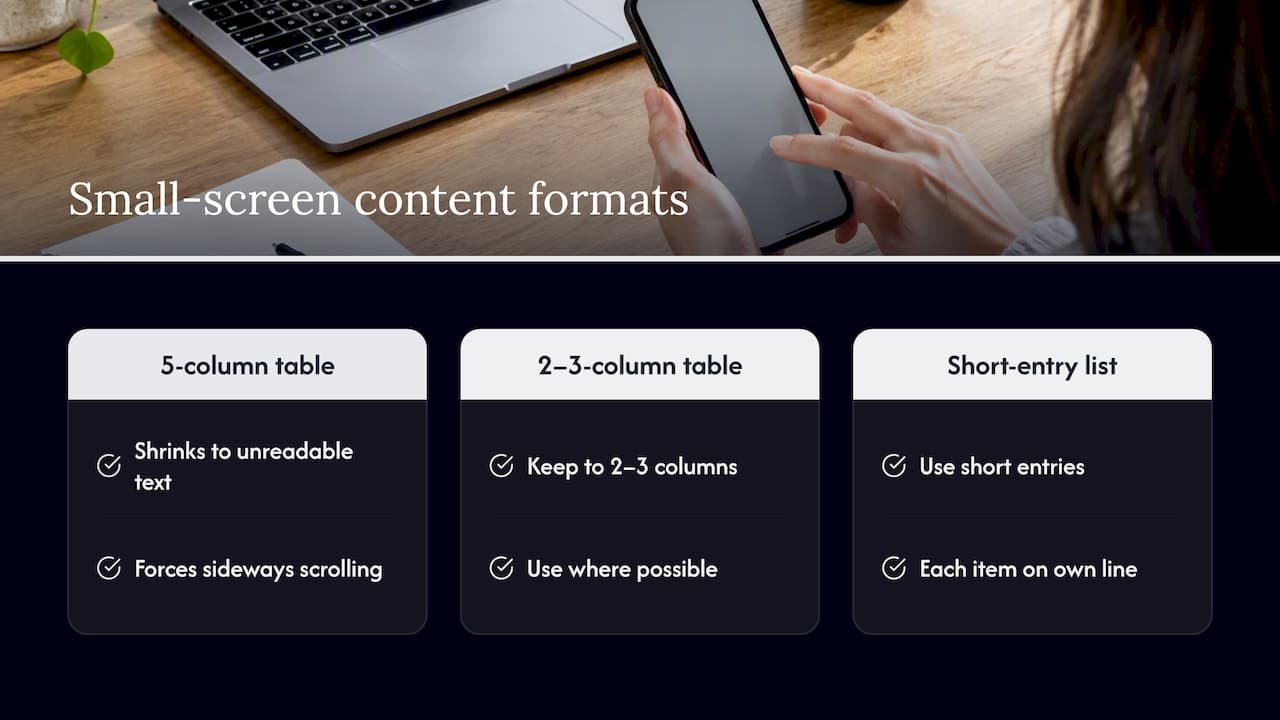
Bulleted and numbered lists work well on small screens because each item sits on its own line. Wide tables are riskier. A five-column comparison will either shrink to unreadable text or force sideways scrolling. Keep tables to two or three columns where you can, or rewrite the data as a list of short entries.
Every sentence costs scroll distance. Trim repeated points, weak intros to sections and filler adjectives. This is not about making the page thin. A mobile page can be long and thorough if each part earns its place and is easy to navigate with a clear structure.
Anything that depends on a mouse hover, such as tooltips or menus that open on mouseover, does not work on a touchscreen. Spell out definitions inline, and keep links separated enough that a thumb does not hit the wrong one. A sentence packed with five links is hard to use on a phone, so link where it helps and no more.
The biggest technical pitfall in mobile-first indexing is content parity. Google's guidance says it uses the mobile version for indexing, so anything you trim on mobile to save space can quietly vanish from search. Common culprits include:
Collapsing content into accordions or tabs for usability is common practice and generally fine when the content is in the page's HTML. The risk is content that is only loaded after a user action the crawler will not perform. When in doubt, view the rendered HTML in the URL Inspection tool in Search Console and confirm that the text you care about is there.
The simplest way to guarantee parity is to serve one page to everyone.
Google recommends responsive web design because it serves the same HTML on the same URL to every device and only changes how the page is displayed, as the mobile-first indexing documentation describes. Dynamic serving and separate mobile URLs are supported, but they are harder to maintain and make parity mistakes more likely.
A responsive setup rests on a few basics, all covered in web.dev's responsive web design basics:
maximum-scale=1 stop people from pinching to enlarge, which creates an accessibility barrier. The aim is to design so zooming is never necessary, not to forbid it for people who need it.If you run a CMS such as WordPress, HubSpot or Squarespace, the quickest win is often choosing a modern responsive theme and then testing your own custom blocks, since embedded widgets, wide tables and fixed-width ads are the usual sources of overflow.
The W3C points out that many mobile constraints, such as small screens, variable network speeds and awkward input, overlap with the barriers faced by people with disabilities. Its table of shared web experiences lays this out side by side. Designing well for one group tends to help the other.
One concrete example is reflow. WCAG 2.2 expects content to fit a narrow viewport without horizontal scrolling, and its Understanding Reflow page explains that people with low vision who magnify content depend on it. So the rule you follow for phones also covers readers who zoom to 400% on a laptop. Other habits that serve both groups:
A beautifully written page that takes eight seconds to appear loses its reader before the first sentence. Google measures page experience partly through Core Web Vitals. According to web.dev's explanation of how the thresholds were defined, a page is judged "good" when at least 75% of visits meet these values:
| Metric | What it measures | Good threshold |
|---|---|---|
| LCP (Largest Contentful Paint) | How fast the main content appears | 2.5 seconds or less |
| INP (Interaction to Next Paint) | How quickly the page responds to taps and clicks | 200 ms or less |
| CLS (Cumulative Layout Shift) | How much the layout jumps while loading | 0.1 or less |
The same thresholds apply to desktop and mobile, but phones with slower processors and networks are where most sites struggle to reach them. For a wider look at how load time links to search performance and conversions, this piece on faster website speed is worth reading alongside the checklist below.
srcset and sizes, compress files and use modern formats.A reality check from Google's own documentation on page experience: good Core Web Vitals are recommended for a great experience, but perfect scores do not guarantee top rankings. They are one signal among many. Chase a page that feels fast to a real person, not a green badge for its own sake.
To see where you stand, check the Core Web Vitals report in Search Console for field data from real users, and consider adding your own real-user monitoring, as web.dev suggests in its guide to measuring Web Vitals.
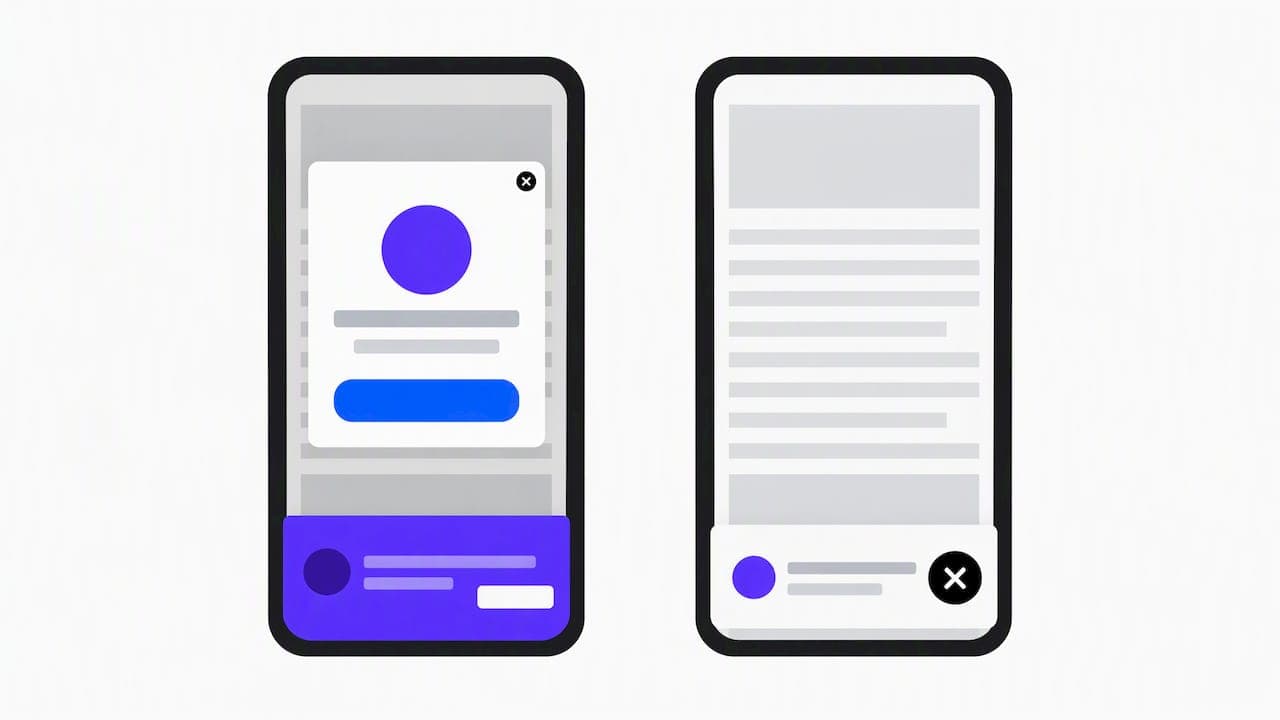
Pop-ups that cover the content right after a click from search, sticky banners that eat a third of the screen and cookie notices with tiny buttons all cost you readers on a phone. If you need a newsletter prompt, delay it until the reader has scrolled or spent some time on the page, and make the close button large and easy to hit. Keep sticky elements slim. On a small screen, every pixel the reader cannot use for reading is a cost.
Use this before you publish:
Most of the pages we see now start life as an AI draft, and that changes the mobile problem. Language models like long, even paragraphs, stacked qualifiers and generic headings. On a laptop that is merely dull. On a phone it is a slog, and readers leave.
So we treat mobile readability as part of making a draft sound human. Restructuring is the work: break up blocks, vary sentence length, lead with the point and replace vague headings with specific ones. That is what we built Semihuman to support, restructuring AI-generated text so it reads naturally and integrating the keywords you actually want to rank for, while keeping the meaning intact. A tool is a starting point, though. The final pass belongs to a person holding a phone, asking whether this is what they would want to read standing on a platform.
Our rule of thumb: if you would not send the paragraph to a friend in a text message, it is too long for mobile.
We also think the quality bar matters more than the origin of the text. Readers and search engines reward pages that are useful, accurate and clear, and that is worth keeping in mind as you edit. Our notes on Google's helpful content approach and on matching content to user intent go deeper on that.
— Tilen
If you produce content at volume, the slowest part of mobile-proofing is the rewrite. Semihuman restructures AI-generated text into more natural, readable prose and helps work in your target keywords, and you can start with the Free, Basic and Pro plans. Teams that want to plug the same step into a publishing pipeline can look at the API plans for developers and businesses. Whichever route you take, finish with the phone check above.
Mobile-friendly content is never finished at publication. Look at a few signals every month:
For ideas on which numbers to track and how they connect to results, see our overview of content metrics for marketers. If you are pairing mobile polish with broader SEO work, our guide to digital marketing content tips covers the content side, and the piece on visual storytelling trends helps with images and video that earn their bytes.
Take a typical blog post that reads fine on desktop. On a phone, the opening paragraph is nine lines, the first heading says "Overview", a four-column comparison table scrolls sideways, and the hero image is a 3,000-pixel-wide file loaded lazily.
Here is what an editor would do, in order:
None of these steps needs a redesign. They are editing and housekeeping, and together they usually change how the page feels more than any single technical tweak.
Lead with the answer, keep paragraphs to two or three sentences, use specific headings and favor lists over wide tables. Then read the page on a real phone and cut anything that makes you scroll without gaining something. Clear writing and a clear structure matter more than any single trick.
Start with a responsive layout and a correct viewport tag, then make sure the mobile page contains the same text, images and links as desktop. Compress and size your images, reserve space for embeds and avoid intrusive pop-ups. Finally, check Core Web Vitals in Search Console and fix the URL groups flagged as poor.
Google uses the mobile version of your content for indexing and ranking, so your mobile page is effectively the one being judged. Page experience, including Core Web Vitals, is one signal among many, and Google says perfect scores do not guarantee top rankings. Useful content that works well on a phone is the safest position.
Keep content identical across devices, use responsive design and meet the good thresholds for LCP, INP and CLS. Write headings and opening lines that match what searchers want, and keep titles concise so they display fully. Review mobile performance by device in Search Console every month.




Start
Humanizing
for Free!
Humanize